Updated May 18, 2025Published May 18, 2025
Create app icon: Tips for iOS & Android icons
 Louis Nell
App icons are more than just graphics — they are the first impression of your app and are often decisive for the download. Whether for Android or iOS: The icon is your business card in the store. A good design attracts attention, reflects the function of the app and strengthens the brand identity. In this article, we'll show you how to create an app icon that's convincing — including tips and free templates for iOS and Android.
Why are app icons so important?
App icons are often the first point of contact between user and app — whether in the App Store or on the home screen. In a world full of apps, first impressions determine whether someone clicks on your app at all.
A good icon is more than just beautifully designed — it fulfills important functions:
- Attracts attention immediately and stands out from the crowd in the store
- Reflects the purpose and function of the app at a glance
- Strengthens recognition and brand identity
The design and quality of the icon directly influence the download rate. Users are more likely to trust apps with a professional, clear icon. Especially in overcrowded app stores, a strong icon can decide whether your app is noticed or ignored.
What makes for a great app icon design?
A successful app icon has several key features:
- Simplicity - A minimalistic design ensures that the icon remains clearly recognizable — even in a small version or on different backgrounds. Overloaded designs quickly look confusing.
- Square format - Most platforms (Apple & Google) prefer square icons. Such a format ensures that your design is displayed correctly.
- Uniqueness - Color, shape, or symbolism should stand out clearly from others. This will keep your icon memorable and stand out in crowded app stores.
- Flexibility - The icon must work in all sizes and contexts — whether in the store, on the home screen or in the multitasking menu. It should always be easy to read and visually appealing.
A strong app icon combines all of these features — it looks professional, conveys the brand identity and is visually convincing on every device.
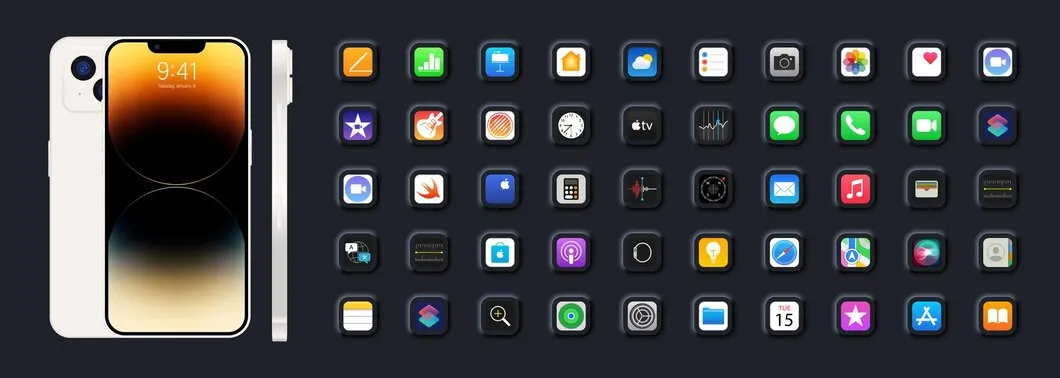
Understanding app icons and their functionality
An app icon should not only look good, but should also be technically perfectly adapted to the respective platform. iOS and Android have different requirements — particularly in terms of sizes, resolutions and presentations.
iOS: Icons for iPhones and iPads
For Apple devices, app icons must be created in multiple sizes to cover all types of displays — particularly retina displays with a high pixel density. Common formats range from:
- 60×60 px (for the home screen)
- up to larger variants for App store listing or iPads
The important thing is: Your icon must be razor-sharp and clear at any size — on all devices with HD or Retina resolution.
Android: icons for many devices and displays
Android devices are more diverse in terms of screen sizes and resolutions. That's why you need:
- Several icon versions (for low, medium, high, xhdpi and higher)
- Good scaling so that the icon is displayed cleanly on old and new devices
Without this adjustment, blurring or distorted images may occur.
Flexible & future-proof
Another point: Your app icon should be easy to update.
Whether for a redesign, seasonal versions or new branding requirements — a flexible design and well-structured files enable quick changes.
Especially with Android, it's important to know how to replace app icons correctly so that they are displayed as desired in the app.
Create your own app icon
Developing an icon is a creative process that must be carefully planned and executed from concept development to publication. It is helpful to familiarise yourself with the entire process of Create app design to ensure a consistent and appealing design. This is not only about designing an aesthetically appealing icon, but also about correctly communicating the app identity and functionality. Here's an overview of the steps you should take when developing your own app icon.
1. Concept development
The first step in creating an app icon is defining the goal and core idea of the app. Before you start designing, you should clearly understand what your app is doing and what message it should convey. Is it functional, entertaining, or creative? The icon must reflect this core idea in order to establish an immediate connection with the user.
Finding inspiration is the next step. Gathering inspiration is crucial for developing new ideas. You can use anything from nature to successful competitor apps as a source. Take a look at which design approaches are used in similar apps and analyze what users like. But make sure that your icon remains unique and stands out from the rest.
2. Create initial logo designs
Now comes the creative part: creating initial drafts. You can either sketch on paper or use digital tools like Figma. Sketching helps you to quickly record and visualize initial ideas. In the digital phase, you can then further develop and refine the designs. It's also important to get feedback from the target audience. Feedback from potential users or other designers can give you valuable clues as to which elements of the icon are working well and which still need to be improved.
3. Digital implementation of app icons
The app icon is digitally implemented in specialized design software tools such as Adobe Illustrator, Sketch or Canva. These tools give you the flexibility and control you need to create a professional icon. Here, you should choose colors, shapes, and symbols that match the functionality and character of the app. The choice of colors should both reflect the brand identity and have psychological effects on the user. The shapes and symbols must be clear and concise so that the icon remains easily recognizable even in small sizes.
4. Scaling and testing
After the icon has been created digitally, it is important to test the icon in different sizes and on different backgrounds. Make sure that the design is still easy to see in smaller views, such as those that appear in the app store or on users' devices. During this phase, you should also schedule feedback loops to further optimize the icon. Test the icon on different devices and screen sizes to make sure it looks good on everyone. Small details such as shadows, color gradations or contrasts must be carefully checked.
5. Publishing on the App Store
Finally, it's time to publish your app icon. Make sure that you export the icon in the appropriate formats, such as PNG or JPEG, which are required for the various app stores. Also take into account the specific guidelines of app stores such as Google Play or the Apple App Store, which set exact requirements for the size and resolution of the icon. As soon as everything is in the right formats and sizes, you can use your icon together with the Programming iOS apps and upload and publish to the store.
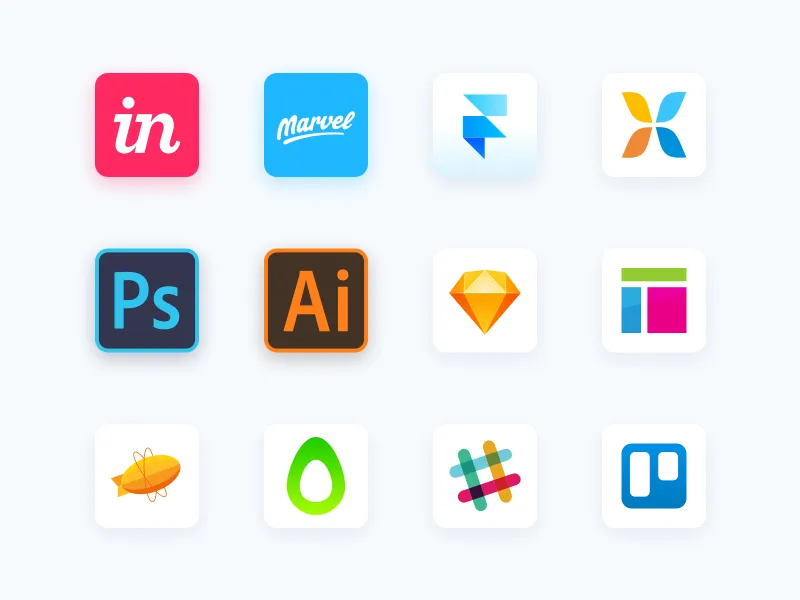
The best tools to design icons and apps
There are many useful tools available for creating a professional app icon.
Design guidelines such as Material Design (Google) and the Human Interface Guidelines (Apple) provide clear guidelines and templates. The following are particularly suitable for implementation:
- Figma and Photoshop — ideal for precise UI design
- Affinity Designer — a cost-effective alternative for vector graphics
- Canva — simple tool for quick, creative adjustments
Also, icon generators like Canva or Iconfinder are helpful if you want things to be quick or if you have little design experience. They offer templates, icons, and ease of use — perfect for beginners.
In addition, you can find many online free resources such as:
- Templates to customize
- Step-by-step tutorials
- Community forums for feedback
With these tools, you can create attractive and scalable icons — regardless of your design level.
Common pitfalls and how to avoid them
When creating an app icon, there are several common pitfalls that can jeopardize the success of your design if you ignore them. One of the biggest traps is an overly complex design. In small sizes, detailed elements are lost, which makes the icon unclear and difficult to recognize. Especially on mobile devices or in the App Store, where icons often appear in smaller versions, it is important to choose a simple and clear design that remains easily recognizable even when reduced in size. Avoid too many details and focus on the essential elements that clearly convey the function and appearance of your app.
Another common issue is a lack of consistency. Your icon should blend seamlessly with the overall app design and brand identity. Make sure the icon matches the visual language of your app and brand. For example, if your app has a minimalistic or modern aesthetic, the icon should also reflect those styles. An inconsistent design can give the impression that the app isn't professional or poorly thought out, which could scare off potential users.
Last but not least, there are often problems with non-compliance with guidelines. Both the Apple App Store and Google Play Store have specific requirements for app icons, such as the correct size, resolution and file format. If you don't follow these guidelines, your icon may be rejected and you'll need to resubmit your app. Be sure to check the exact specifications for the various platforms and make sure that your icon meets all requirements to avoid unnecessary delays.
Tips for better icons on iPhone and Android
Customizing and individualizing app icons can significantly improve the user experience. On the iPhone, there are various ways to change icons and design the user interface according to your own wishes. With iOS 14 and higher versions, Apple allows users to personalize their app icons via the Shortcuts app. You can create custom icons by uploading custom images and using them as shortcuts for your apps. This is particularly useful when you want to adjust the aesthetics of your home screen or change the icons of your favorite apps. Note, however, that this method creates an additional link, which means that you don't open the app directly, but navigate using the shortcut link first.
On Android, customizing app icons is even more flexible. Most Android devices offer an easy way to change icons via settings or using launchers. Many launchers, such as Nova Launcher or Action Launcher, allow you to customize icons, either by choosing from a variety of ready-made icons or by uploading your own designs. To change an app icon on Android, simply go to your launcher's “Settings” and select the “Customize app icons” option. As a rule, you can then either replace the existing icon or select new symbols from a library. These adjustments give you a high level of flexibility to customize the look of your apps and the entire home screen to suit your taste.
When is it time to update your app icon?
There are a few reasons why you should update your app icon to make sure it always stays up to date, relevant, and appealing. Rebranding is a common reason for change. If your app gets a new look, for example through a change in the logo or a new brand strategy, the app icon should also be adjusted accordingly. A consistent design across all channels ensures a strong brand identity and a consistent user experience. Rebranding the icon helps users more easily connect the app with the new brand and strengthen trust.
Another important update comes when the app's features change or are expanded. If your app gets new features or a redesigned user interface, the icon should reflect those changes. An outdated or no longer suitable icon can confuse users and give the impression that the app is no longer up to date or innovative. A fresh, modern icon that reflects the app's new features ensures that users immediately recognize that this is an improved or extended version.
In addition to functional changes, adapting the icon to seasonal events or special occasions can also be a good way to increase user interest. Special icons for holidays, promotions or special offers can attract the attention of users and create a festive or thematically appropriate atmosphere. These seasonal updates not only provide an opportunity for brand loyalty, but also to increase download numbers during specific marketing campaigns or events.
Conclusion: Design your perfect app icon for iOS and Android
A good app icon is more than just a pretty picture — it's the first impression of your app and is crucial to its success. It should be simple, unique and flexible, work in all sizes, and reflect the brand identity and function of the app.
Technical optimization for various devices and platforms is also important. Anyone who regularly tests, listens to user feedback and adapts icons to new functions or seasonal events ensures a fresh and professional appearance.
If you need assistance, our web design agency will help you design an individual and technically clean app icon for iOS and Android — so that your app is immediately convincing in the store.
The Best Tools for Designing Icons and Apps
Many useful tools are available to you for creating a professional app icon.
Design guidelines such as Material Design (Google) and the Human Interface Guidelines (Apple) provide clear specifications and templates. For implementation, the following are particularly well suited:
- Figma and Photoshop – ideal for precise UI design
- Affinity Designer – an inexpensive alternative for vector graphics
- Canva – a simple tool for quick, creative adjustments
Icon generators such as Canva or Iconfinder are also helpful if you need results quickly or have little design experience. They offer templates, symbols and simple operation – perfect for beginners.
You will also find many free resources online, such as:
- Customizable templates
- Step-by-step tutorials
- Community forums for feedback
With these tools, you can create appealing, scalable icons – regardless of your design skill level.
Common Pitfalls and How to Avoid Them
When creating an app icon, there are several common pitfalls that can endanger the success of your design if you ignore them. One of the biggest traps is a design that is too complex. At small sizes, detailed elements get lost, which makes the icon unclear and hard to recognize. Especially on mobile devices or in the App Store, where icons often appear in a smaller view, it is important to choose a simple, clear design that remains easily recognizable even when scaled down. Avoid too many details and focus on the essential elements that clearly convey the function and appearance of your app.
Another common problem is a lack of consistency. Your icon should fit seamlessly into the overall design and brand identity of the app. Make sure the icon matches the visual language of your app and the brand. For example, if your app has a minimalist or modern aesthetic, the icon should reflect that style as well. An inconsistent design can give the impression that the app is unprofessional or poorly thought out, which could put off potential users.
Last but not least, there are often problems with guidelines not being followed. Both the Apple App Store and the Google Play Store have specific requirements for app icons, such as the correct size, resolution and file format. If you do not follow these guidelines, your icon may be rejected and you may have to resubmit your app. Make sure to check the exact specifications for the different platforms and ensure that your icon meets all requirements to avoid unnecessary delays.
Tips for Better Icons on iPhone and Android
Adapting and personalizing app icons can significantly improve the user experience. On the iPhone, there are various ways to change icons and to shape the user interface to your own preferences. With iOS 14 and later versions, Apple allows users to personalize their app icons via the Shortcuts app. You can create your own icons by uploading custom images and using them as shortcuts for your apps. This is particularly useful if you want to adjust the look of your home screen or change the icons of your favorite apps. Note, however, that this method creates an additional shortcut, which means that you do not open the app directly but first navigate via the shortcut.
On Android, customizing app icons is even more flexible. Most Android devices offer a simple way to change icons via the settings or by using launchers. Many launchers, such as Nova Launcher or Action Launcher, let you customize icons individually, either by choosing from a wide range of pre-made icons or by uploading your own designs. To change an app icon on Android, simply go to the "Settings" of your launcher and select the option “Customize app icons”. You can then usually either replace the existing icon or choose new icons from a library. These adjustments give you a high degree of flexibility to shape the look of your apps and the entire home screen to your taste.
When Is It Time to Update Your App Icon?
There are various reasons why you should update your app icon to make sure it always stays current, relevant and appealing. A common reason for a change is rebranding. If your app gets a new look, for example through a change of logo or a new brand strategy, the app icon should be adapted accordingly. A consistent design across all channels ensures a strong brand identity and a uniform user experience. Rebranding the icon helps users connect the app with the new brand more easily and strengthens trust.
Another important time for an update is when the features of the app change or are expanded. If your app gets new features or a revised user interface, the icon should reflect these changes. An outdated or no longer fitting icon can confuse users and give the impression that the app is no longer up to date or innovative. A fresh, modern icon that reflects the new features of the app ensures that users recognize immediately that it is an improved or expanded version.
In addition to functional changes, adapting the icon to seasonal events or special occasions can also be a good way to boost user interest. Special icons for holidays, promotions or special offers can attract the attention of users and create a festive or thematically fitting atmosphere. These seasonal updates offer not only a way to build brand loyalty but also to increase download numbers during specific marketing campaigns or events.
Conclusion: Designing Your Perfect App Icon for iOS and Android
A good app icon is more than a pretty picture – it is the first impression of your app and crucial to its success. It should be simple, unique and flexible, work at all sizes and reflect both the brand identity and the function of the app.
Technical optimization for different devices and platforms is important as well. Anyone who tests regularly, listens to user feedback and adapts icons to new features or seasonal occasions ensures a fresh and professional appearance.
If you need support, our web design agency will help you create a custom, technically clean app icon for iOS and Android – so that your app makes a convincing impression in the store right away.
Between agency life and startups - our blog
In our blog we share tips on app development, startups and a few wild stories from everyday agency life.
How to Integrate PayPal in Your App: A 2026 Guide
How to integrate PayPal into your app: integration paths, requirements, a step-by-step walkthrough and the mistakes that cost you conversions.Read story
Software Development Outsourcing: When It Pays Off
When does software development outsourcing pay off, which models exist and how do you spot a good partner? An honest take, hidden costs included.Read story
Low Code Development: When It Pays Off and When It Doesn't
What low code can really do, where its limits are and when custom development pays off more. An honest take with a 2026 platform comparison.Read story
Book your free call.
We look at your plans with you as if they were our own. If building does not pay off, we tell you, even when that speaks against the project.

Pick a day
Pick a day
Loading available times …